This guide covers the available configuration options in AstroPaper — from site metadata and feature flags to fonts, social links, and layout settings.
Table of contents
Open Table of contents
Configuring astro-paper.config.ts
All site-wide configuration lives in astro-paper.config.ts at the root of the project. Use defineAstroPaperConfig() to get full IntelliSense support:
import { defineAstroPaperConfig } from "./src/types/config";

export default defineAstroPaperConfig({
  site: {
    url: "https://your-site.com/", // replace with your deployed URL
    title: "AstroPaper",
    description: "A minimal, responsive and SEO-friendly Astro blog theme.",
    author: "Sat Naing",
    profile: "https://satnaing.dev",
    ogImage: "default-og.jpg",
    lang: "en",
    timezone: "Asia/Bangkok",
    dir: "ltr",
  },
  posts: {
    perPage: 4,
    perIndex: 4,
    scheduledPostMargin: 15 * 60 * 1000, // 15 minutes
  },
  features: {
    lightAndDarkMode: true,
    dynamicOgImage: true,
    showArchives: true,
    showBackButton: true,
    editPost: {
      enabled: true,
      url: "https://github.com/satnaing/astro-paper/edit/main/",
    },
    search: "pagefind",
  },
  socials: [
    { name: "github", url: "https://github.com/satnaing/astro-paper" },
    { name: "x", url: "https://x.com/username" },
    { name: "linkedin", url: "https://www.linkedin.com/in/username/" },
    { name: "mail", url: "mailto:yourmail@gmail.com" },
  ],
  shareLinks: [
    { name: "whatsapp", url: "https://wa.me/?text=" },
    { name: "facebook", url: "https://www.facebook.com/sharer.php?u=" },
    { name: "x", url: "https://x.com/intent/post?url=" },
    { name: "telegram", url: "https://t.me/share/url?url=" },
    { name: "mail", url: "mailto:?subject=See%20this%20post&body=" },
  ],
});astro-paper.config.ts
site options
| Option | Description |
|---|---|
url | Your deployed website URL. Used for canonical URLs, OG image URLs, RSS feed, and sitemap. In production this must be set correctly. |
title | Your site name. |
description | Your site description. Useful for SEO and social media sharing. |
author | Your name. Used as the default post author. |
profile | Your personal/portfolio website URL, used for structured data. Set to undefined if you don’t have one. |
ogImage | Default OG image filename in /public (e.g. "default-og.jpg"). Used when no post-specific OG image is set and dynamicOgImage is disabled. |
lang | HTML ISO language code for <html lang="...">. Defaults to "en". |
timezone | IANA timezone for post dates (e.g. "Asia/Bangkok"). Ensures consistent timestamps across localhost and your deployed site. |
dir | Text direction for <html dir="...">. Supports "ltr" | "rtl" | "auto". |
googleVerification | Google Search Console verification meta tag value. Optional. Takes precedence over the PUBLIC_GOOGLE_SITE_VERIFICATION environment variable. |
posts options
| Option | Description |
|---|---|
perPage | Number of posts shown per page on paginated listing pages. Defaults to 4. |
perIndex | Number of posts shown in the Recent section on the home page. Defaults to 4. |
scheduledPostMargin | Posts with a future pubDatetime within this window (in ms) are treated as published. Defaults to 15 minutes (15 * 60 * 1000). |
features options
| Option | Description |
|---|---|
lightAndDarkMode | Enable or disable the light/dark mode toggle. Defaults to true. |
dynamicOgImage | Generate a dynamic OG image per post when no ogImage is specified in frontmatter. Defaults to true. See the trade-off for details. |
showArchives | Show the /archives page and its header link. Defaults to true. |
showBackButton | Show the “Go back” button on post pages. Defaults to true. |
editPost | An “Edit page” link shown under post titles. Set enabled: true and provide the base url for your repository’s edit URL. Per-post override via hideEditPost frontmatter. |
search | Search provider. "pagefind" is the default. Set to false to disable search entirely. |
Update layout width
The default max-width for the entire blog is 768px (max-w-3xl). If you’d like to change it, update the max-w-app utility in src/styles/global.css:
@utility max-w-app {
  @apply max-w-3xl;
  @apply max-w-4xl xl:max-w-5xl;
}src/styles/global.css
You can explore more max-width values in the Tailwind CSS docs.
Configuring logo or title
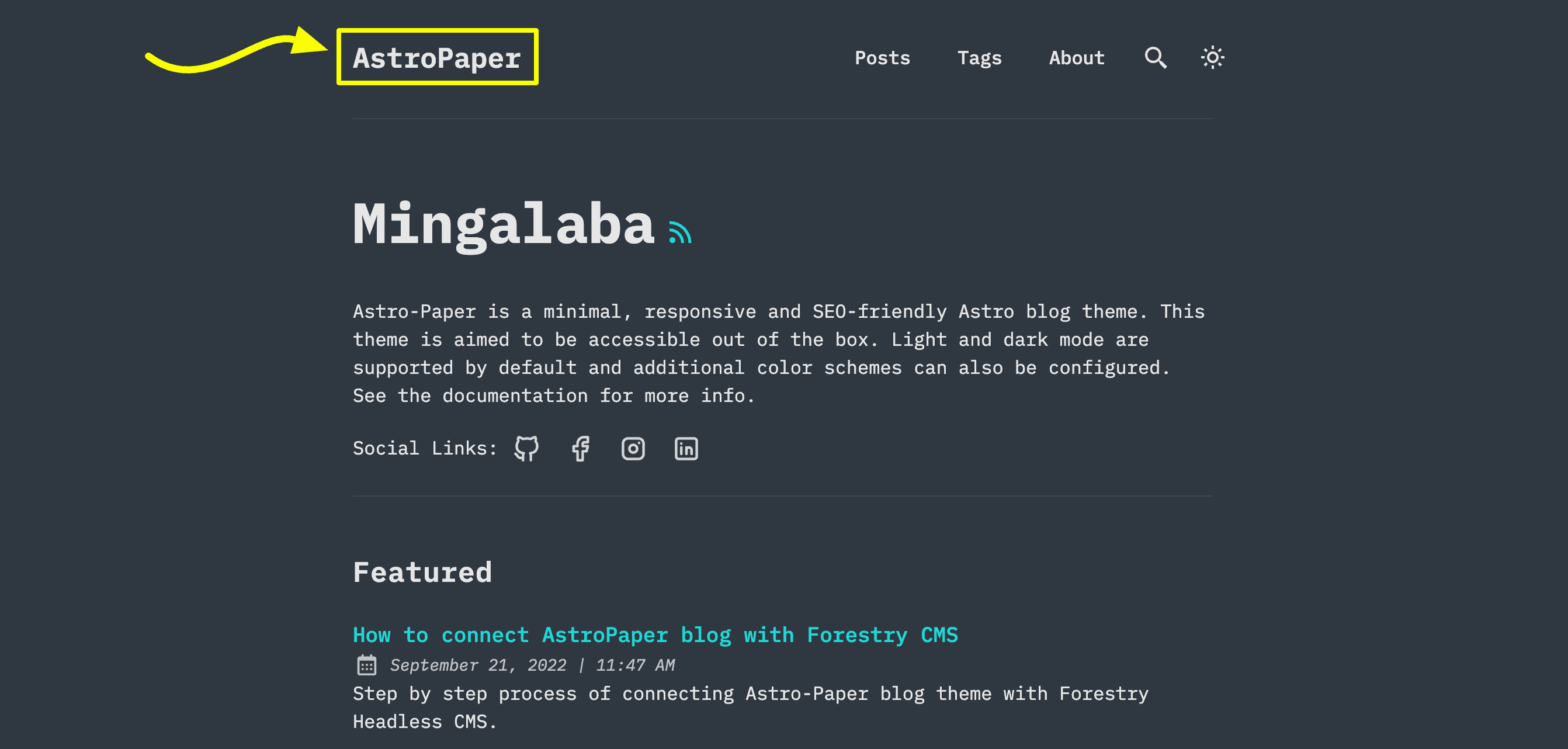
There are 3 options you can do:
Option 1: Site title text
This is the easiest option. Update site.title in astro-paper.config.ts.
Option 2: Astro’s SVG component
You might want to use this option if you want to use an SVG logo.
-
First add an SVG inside
src/assets/directory. (e.g.src/assets/dummy-logo.svg) -
Then import that SVG inside
Header.astro--- // ... import DummyLogo from "@/assets/dummy-logo.svg"; ---src/components/Header.astro -
Finally, replace
{config.site.title}with imported logo.<a href="/" class="absolute py-1 text-left text-2xl leading-7 font-semibold whitespace-nowrap sm:static" > <DummyLogo class="scale-75 dark:invert" /> <!-- {config.site.title} --> </a>
The best part of this approach is that you can customize your SVG styles as needed. In the example above, you can see how the SVG logo color can be inverted in dark mode.
Option 3: Astro’s Image component
If your logo is an image but not SVG, you can use Astro’s Image component.
-
Add your logo inside
src/assets/directory. (e.g.src/assets/dummy-logo.png) -
Import
Imageand your logo inHeader.astro--- // ... import { Image } from "astro:assets"; import dummyLogo from "@/assets/dummy-logo.png"; ---src/components/Header.astro -
Then, replace
{config.site.title}with imported logo.<a href="/" class="absolute py-1 text-left text-2xl leading-7 font-semibold whitespace-nowrap sm:static" > <image src="{dummyLogo}" alt="My Blog" class="dark:invert" /> <!-- {config.site.title} --> </a>
With this approach, you can still adjust your image’s appearance using CSS classes. However, this might not always fit what you want. If you need to display different logo images based on light or dark mode, check how light/dark icons are handled inside the Header.astro component.
Configuring social links
Social links are configured in the socials array inside astro-paper.config.ts. Each entry requires a name matching an SVG filename in src/assets/icons/socials/ and a url:
export default defineAstroPaperConfig({
  // ...
  socials: [
    { name: "github", url: "https://github.com/satnaing/astro-paper" },
    { name: "x", url: "https://x.com/username" },
    { name: "linkedin", url: "https://www.linkedin.com/in/username/" },
    { name: "mail", url: "mailto:yourmail@gmail.com" },
  ],
});astro-paper.config.ts
To add a social not in the defaults, add its SVG icon to src/assets/icons/socials/ and add an entry to the array. The name must match the SVG filename without the .svg extension.
Configuring share links
Share links are configured in the shareLinks array. Each entry requires a name (matching an SVG in src/assets/icons/socials/) and a base url to which the post URL is appended:
export default defineAstroPaperConfig({
  // ...
  shareLinks: [
    { name: "whatsapp", url: "https://wa.me/?text=" },
    { name: "facebook", url: "https://www.facebook.com/sharer.php?u=" },
    { name: "x", url: "https://x.com/intent/post?url=" },
    { name: "telegram", url: "https://t.me/share/url?url=" },
    { name: "mail", url: "mailto:?subject=See%20this%20post&body=" },
  ],
});astro-paper.config.ts
Configuring fonts
AstroPaper uses Astro’s fonts API with Google Sans Code as the default font. This provides consistent typography across all platforms with automatic font optimizations including preloading and caching.
Using the default font
The font is automatically configured in astro.config.ts and loaded in Layout.astro. No additional configuration is needed to use the default Google Sans Code font.
Customizing the font
To use a different font, update three places:
- Update the font configuration in
astro.config.ts:
import { defineConfig, fontProviders } from "astro/config";

export default defineConfig({
  // ...
  fonts: [
    {
      name: "Your Font Name",
      cssVariable: "--font-your-font",
      provider: fontProviders.google(),
      fallbacks: ["monospace"],
      weights: [300, 400, 500, 600, 700],
      styles: ["normal", "italic"],
    },
  ],
});astro.config.ts- Update the Font component in
Layout.astro:
---
import { Font } from "astro:assets";
// ...
---

<head>
  <!-- ... -->
  <Font
    cssVariable="--font-your-font"
    preload={[{ subset: "latin", weight: 400, style: "normal" }]}
  />
  <!-- ... -->
</head>src/layouts/Layout.astro- Update the CSS variable mapping in
src/styles/theme.css:
@theme inline {
  --font-app: var(--font-your-font);
  /* ... */
}src/styles/theme.css
The --font-app variable is used throughout the theme via the font-app Tailwind utility class, so updating this single variable applies your custom font everywhere.
Note: Make sure the font name matches exactly as it appears on Google Fonts. For other font providers or local fonts, refer to the Astro Fonts documentation.
See also
- Customizing AstroPaper theme color schemes — change or add color schemes via
src/styles/theme.css. - Adding new posts — frontmatter reference and file conventions.